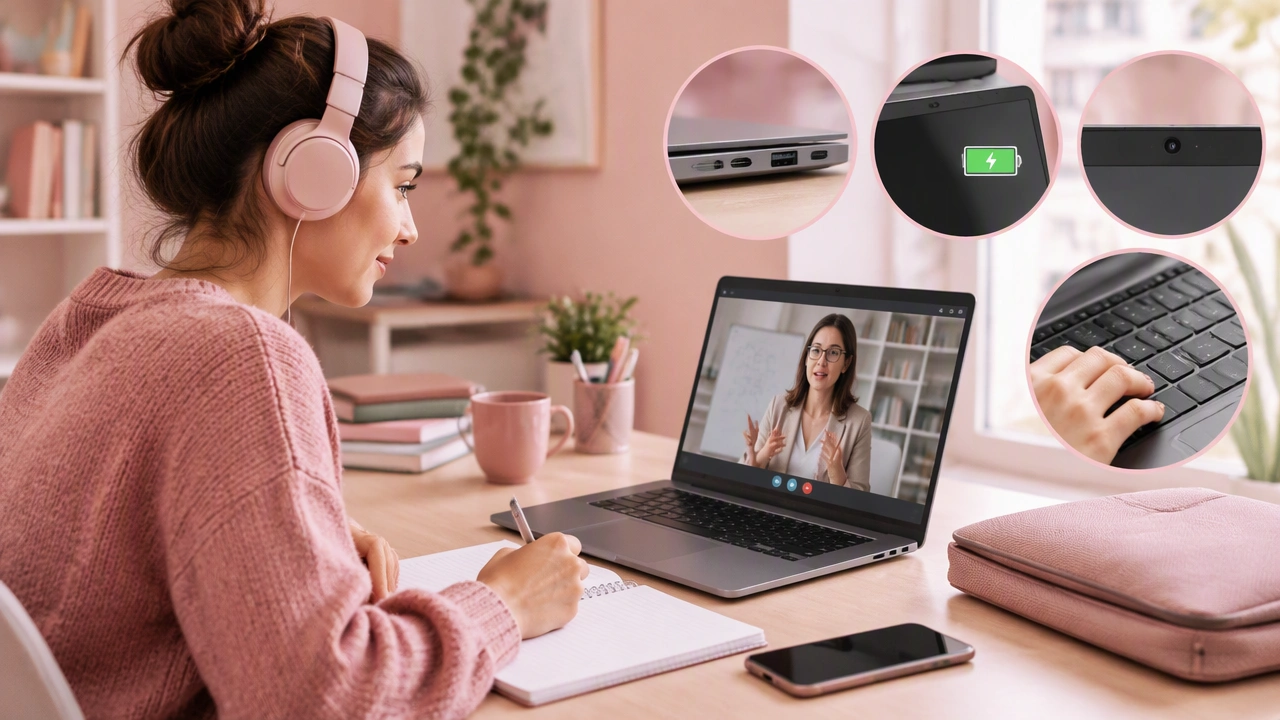
How to Choose a Laptop for Distance Learning: Specs, Battery, Camera, and Comfort
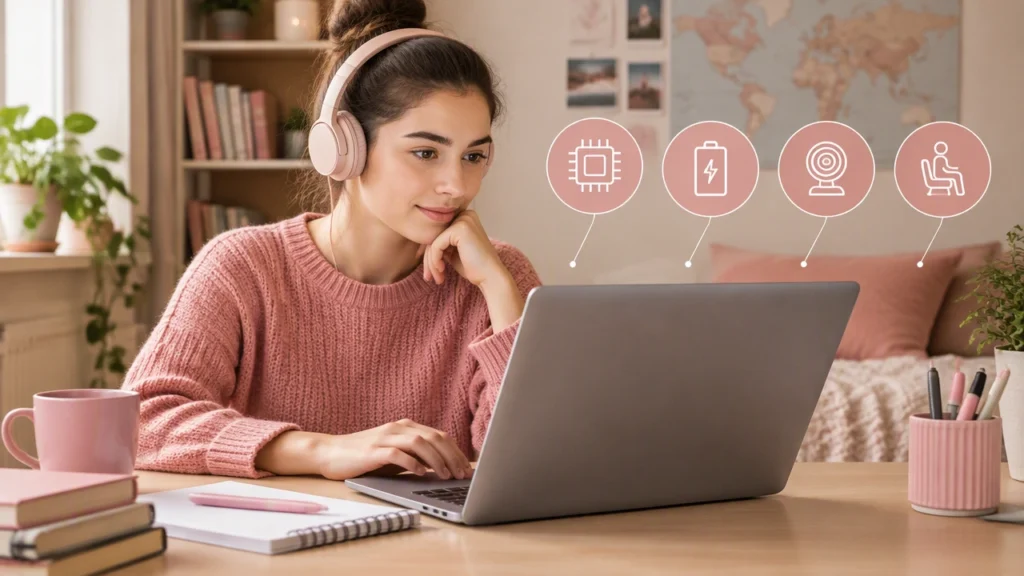
Choosing a device for online classes can feel overwhelming because every product page highlights a different set of numbers. The good news is that you do not need a gaming laptop or the most expensive workstation for edukacja zdalna. You need a balanced machine that stays responsive during lessons, lasts through a full day, looks and sounds clear in class, and remains comfortable when you use it for hours.
This guide explains how to choose a laptop for distance learning by focusing on the details that affect real study sessions. Use it as a practical checklist rather than a shopping list tied to one brand.
Start With the Work You Actually Do
Before comparing processors, think about your typical day. A student who watches recorded lectures, writes in a browser, and joins two video calls has different needs from someone editing video, building 3D models, or running statistical software.
- Light study: documents, slides, browser research, video meetings, and note-taking.
- Moderate study: many browser tabs, spreadsheets, coding projects, and occasional photo or audio work.
- Heavy study: video editing, software development, engineering tools, or creative work with large files.
For light work, a modern quad-core processor and 8 GB of memory are usually enough. For moderate work, aim for a newer six-core chip or a strong efficient processor, plus 16 GB of memory. Heavy workloads benefit from 16 GB or more, a faster processor, and dedicated graphics only when the software truly requires them.
Specs That Keep Daily Lessons Smooth
Processor and memory
The processor handles everything from opening files to encoding your camera feed. Choose a recent generation rather than chasing the highest model number from an older family. For most learners, a current mainstream chip provides more than enough speed while preserving battery life.
Memory matters as much as the processor. Web-based classrooms often run a meeting app, a learning platform, a document, and several reference tabs at once. 8 GB is a practical minimum, but 16 GB gives you more room to keep applications open without slowdowns. If the memory is soldered, buy the larger capacity now because it cannot be upgraded later.
Storage
Choose a solid-state drive rather than a mechanical hard drive. An SSD makes startup, app loading, and file searches dramatically faster. A capacity of 256 GB can work if you rely mostly on cloud storage, but 512 GB is more comfortable for offline lecture recordings, assignments, and reference libraries. Leave free space; a nearly full drive can slow down even a capable laptop.
Display
You will stare at the screen for long stretches, so prioritize clarity and comfort. A Full HD resolution (1920 x 1080) is the sensible baseline; avoid low-resolution panels on larger laptops because text looks soft. Matte screens reduce reflections near windows, while brighter panels are easier to read in daylight. Aim for comfortable viewing at normal brightness, and consider an anti-blue-light mode for evening study.
Battery Life: Plan for a Full Day
Battery claims rarely match real classroom use because video calls, streaming, and high screen brightness consume more power than basic browsing. Look for independent runtime tests that include video playback or mixed use, then expect real-world results to be somewhat lower.
A practical target is seven to ten hours of mixed use, which should cover classes, breaks, and travel between rooms or campuses. Also consider how you charge. A USB-C charger is convenient because one compact adapter can often power both laptop and phone, but check that the port supports the laptop’s required charging speed.
Small habits extend runtime: lower brightness to a comfortable level, close unused tabs, turn off keyboard backlighting in daylight, and use battery saver during lectures. If your schedule is long and unpredictable, prioritize battery capacity and efficient hardware over a faster dedicated graphics chip.
Camera, Microphone, and Speakers
A clear camera matters more than megapixels suggest. Look for a 1080p webcam with good exposure control; many 720p cameras look noisy in ordinary room lighting. A physical privacy shutter is a useful bonus, especially if the laptop stays in a shared space.
Microphone quality affects participation. Dual-array microphones with noise reduction make speech easier to understand than a single tiny input. If the built-in microphone is weak, a simple wired headset can solve the problem without replacing the laptop.
Speakers should make recorded lectures understandable at moderate volume. Stereo speakers facing toward you are generally better than downward-firing models that sound muffled on a desk. Test them if possible, or read detailed reviews that discuss voice clarity rather than bass.
Comfort and Everyday Practicality
Keyboard and trackpad
You may type thousands of words each week, so keyboard feel deserves attention. Look for a layout with comfortable key travel, a sensible Enter and Shift shape, and backlighting for dim rooms. The trackpad should track smoothly and support reliable multi-finger gestures. If the keyboard feels cramped, even excellent specifications will become frustrating over time.
Weight, hinge, and ports
Portability depends on your routine. A laptop between roughly 1.2 and 1.7 kg is easy to carry to class, while larger models may offer better cooling and bigger batteries. A hinge that opens with one hand and holds the screen steadily makes daily use easier.
Check ports before buying. USB-C is versatile, but you may still need USB-A for older accessories, an HDMI output for projectors, and a headphone jack for quiet study. A microSD slot can help transfer camera files. If ports are limited, a small dongle can help, though it adds another item to your bag.
Choose With Confidence
The best laptop for online classes is the one that stays fast during real lessons, survives a long day away from an outlet, presents you clearly on camera, and remains pleasant to use after hours of reading and writing. Compare models using that order, then adjust for your subject’s special software needs.
Shortlist two or three devices, read reviews that test battery life and screen quality, and inspect the keyboard if you can. With a clear plan, you can invest in a dependable study tool without paying for features you will never use.